
Your WooCommerce theme directly affects Google rankings, mobile sales, and how many visitors complete a purchase. Most free theme roundups exist to earn affiliate commissions, not to help you pick correctly. These 10 best free WooCommerce themes for WordPress in 2026 are ranked on real performance data, WooCommerce page compatibility, and long-term developer reliability.
Key Takeaways
- Most free WooCommerce themes lock useful store features behind a paywall. The ones on this list do not.
- Your theme choice directly affects Core Web Vitals scores and your Google search rankings.
- A free theme on fast hosting beats a premium theme on slow hosting every time.
- GeneratePress, Neve, and Astra are the fastest free WooCommerce themes in 2026.
What Makes a Great Free WooCommerce Theme?
A slow or poorly coded theme does not just look bad. It breaks on mobile, falls out of WooCommerce compatibility after updates, and kills your conversion rate before customers reach the cart.
Four criteria separate genuinely useful free themes from everything else.
WooCommerce Page Compatibility
Your theme must style the cart, checkout, My Account, and single product pages correctly without extra plugins. Many free themes only style the homepage and shop archive. They leave the checkout page looking unstyled and broken, which destroys customer trust at the worst moment.
Performance on Real Hosting
A PageSpeed Insights score measured on a developer demo means little. Look for themes with page weight under 1 MB and fewer than 20 HTTP requests on a basic WooCommerce setup. Test the theme on your actual hosting environment before committing.
Free Version Features for Store Owners
The best free WooCommerce themes include sticky headers, off-canvas cart behavior, and responsive product grids at no cost. Too many free options offer only a blank canvas, pushing every useful store feature behind a paid extension from day one.
Active Maintenance and Update Frequency
WooCommerce releases major updates several times per year. A theme without updates in the past six months is a risk for your store. Check the WordPress.org theme page changelog before installing any theme for a production store.
Speed and Performance: How These Themes Compare
Portent's research on site speed and conversion rates found that every extra second of load time drops conversions by 0.3%. Conversion rates peak on pages that load within one to two seconds. For an online store, page speed is not optional.
All scores were measured on demo WooCommerce environments without additional performance plugins. Adding a caching plugin lifts most of these scores significantly above their baseline.
10 Best Free WooCommerce Themes Reviewed for 2026
Which free WooCommerce theme can genuinely handle your product catalog without slowing down checkout? The answer depends less on the theme's feature list and more on how it handles WooCommerce's core pages under real traffic conditions.
Here are the 10 best options, evaluated on WooCommerce page compatibility, performance data, and the real value their free versions deliver.
1. Astra — Best Overall Free WooCommerce Theme

Astra is the most installed free WooCommerce theme on WordPress.org with over 2 million active installations and a 4.9 out of 5 rating. Its free version includes over 240 starter templates, global typography controls, and verified compatibility with Elementor, Beaver Builder, Spectra, Gutenberg, and Brizy.
PageSpeed mobile scores reach 85/100 with a 1.5s Largest Contentful Paint and 2.3s total load time. You can launch a complete store using only the free version without buying a single add-on.
Best for: Small to medium stores wanting the fastest path from setup to a live, styled WooCommerce store.
2. OceanWP — Most Feature-Rich Free WooCommerce Theme
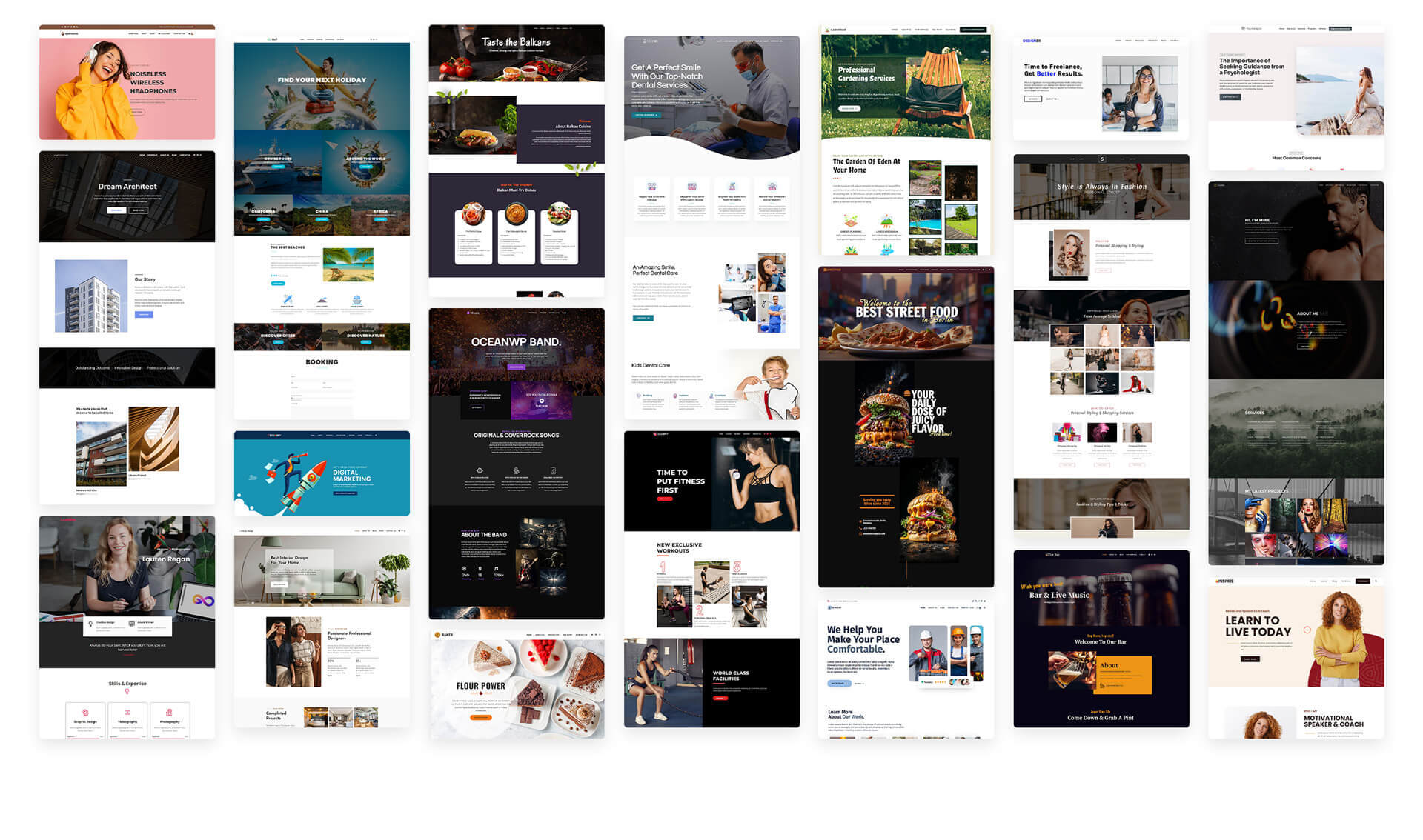
OceanWP ships more WooCommerce-specific features in its free version than any other theme on this list. Native cart pop-ups, a floating add-to-cart bar, and product quick views are all available at no cost. Most themes charge for these features in a premium WooCommerce extension.
OceanWP runs slightly heavier than Astra or GeneratePress. Pair it with a caching plugin to keep load times competitive. It holds a 4.9 out of 5 rating on WordPress.org and supports eight major page builders, including Elementor, Beaver Builder, Divi, and Brizy.
Best for: Stores that want WooCommerce-specific features without paying for a premium upgrade.
3. Storefront — Official WooCommerce Theme
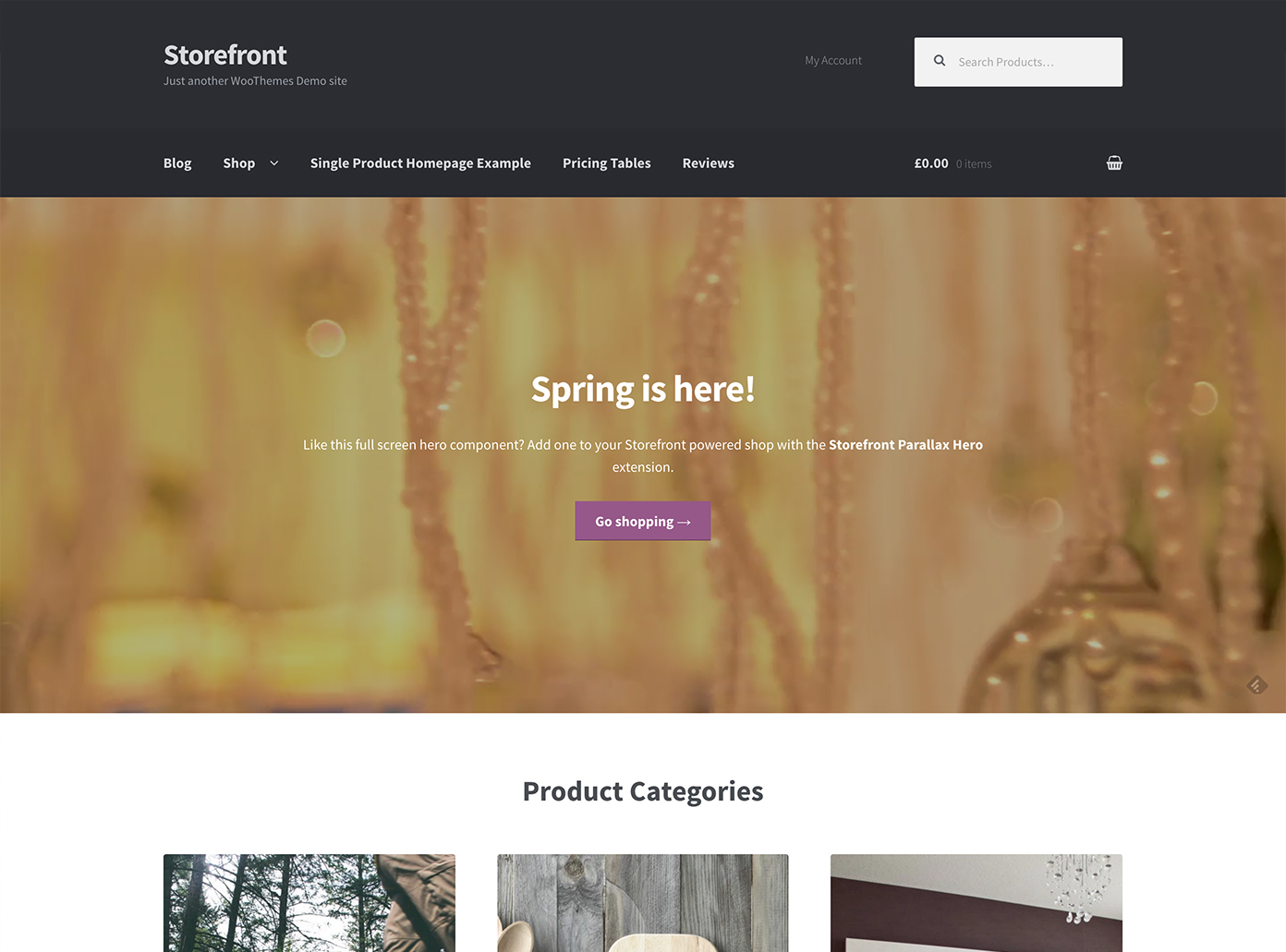
Storefront is built and maintained by WooCommerce's own development team at WooCommerce.com. It exists to demonstrate what WooCommerce can do with a clean, conflict-free theme. There are no bloated scripts, no third-party design choices, and no compatibility surprises after a WooCommerce major update.
WP Rocket's direct testing shows an 84/100 PageSpeed mobile score, a 2.1s total load time, and zero total blocking time on a live WooCommerce demo. Customization options are intentionally limited. Use Storefront when store reliability matters more to you than visual flexibility.
Best for: Developers building client stores that require guaranteed compatibility with every WooCommerce update.
PRO TIP: Storefront has six official free child themes available directly from WooCommerce.com. Each child theme extends Storefront's layout without modifying its core files or update path.
4. Botiga — Best Block Editor WooCommerce Theme
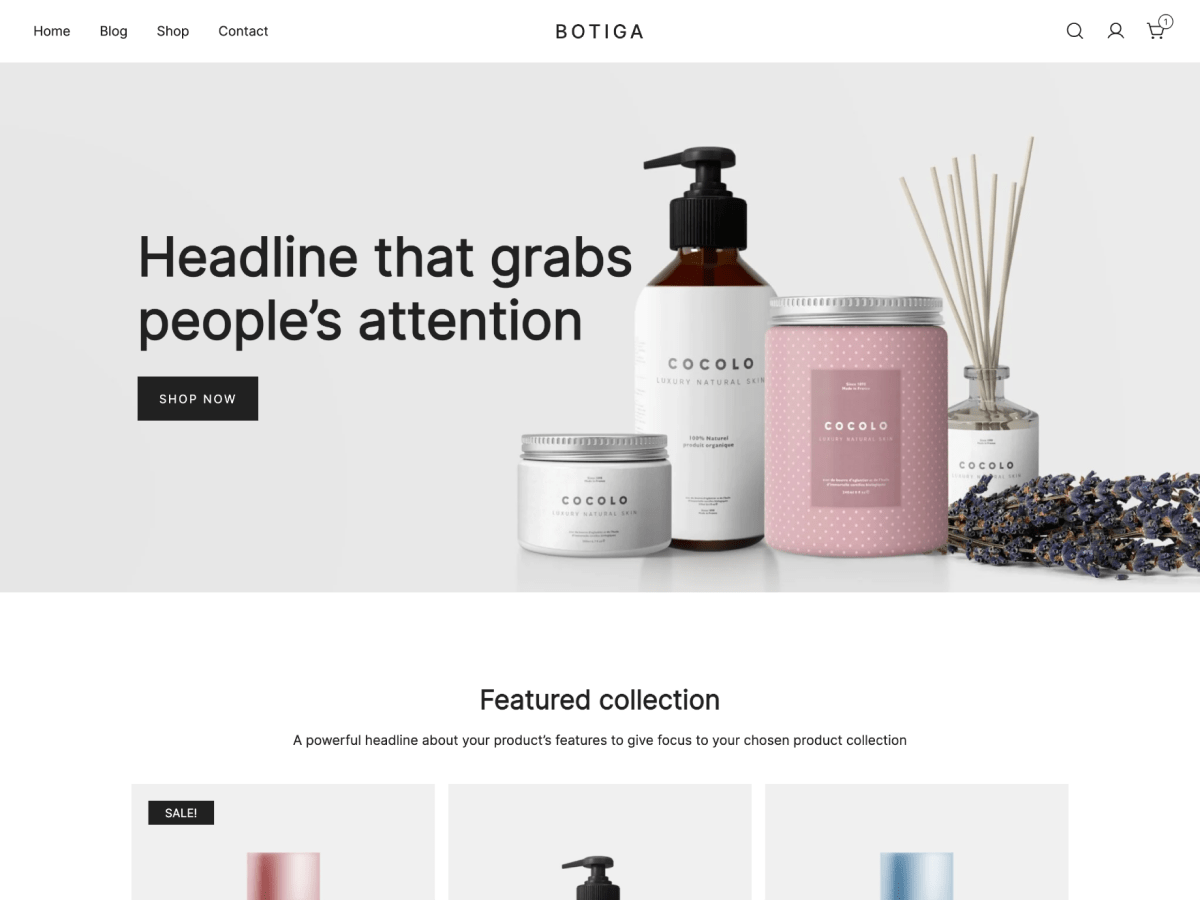
Botiga builds all demo content with the native WordPress block editor. It skips page builder dependency entirely. The result is a fast-loading store that requires no Elementor or WPBakery license on either the free or paid tier.
Page weight clocks at 780 KB on a WooCommerce demo, among the lightest on this list. The free version includes multiple product gallery layouts, off-canvas product filters, and product recommendations. PageSpeed mobile scores reach 84/100.
Best for: Stores that want to build without page builder plugins and stay entirely on the WordPress block editor.
5. Neve — Best for Core Web Vitals
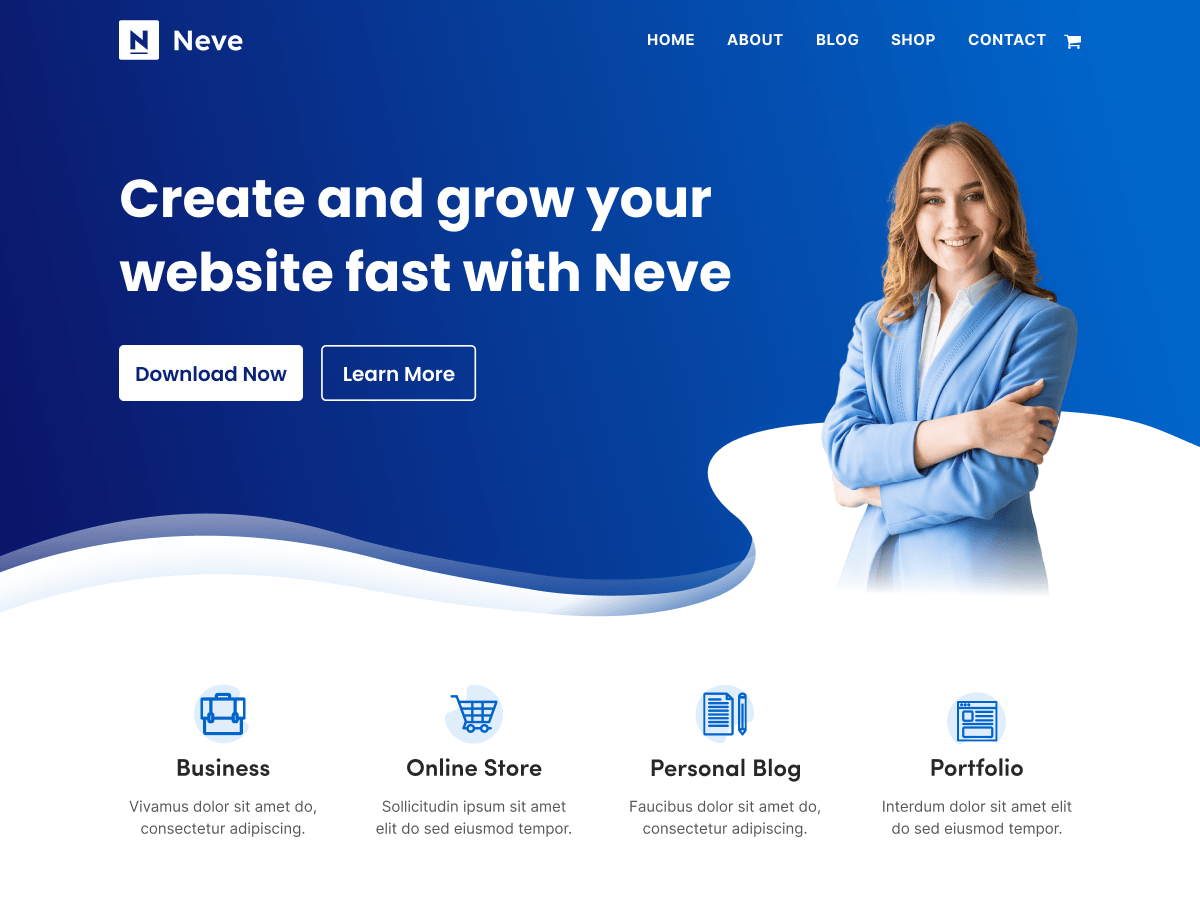
Neve carries the lightest page weight on this list at 678 KB on a WooCommerce demo setup. It pairs that with an 85/100 PageSpeed mobile score and a 1.5s Largest Contentful Paint. Core Web Vitals scores are where Neve consistently leads most competitors.
The free version includes multiple shop layouts, responsive product grids, and strong mobile performance with no plugin bundling. Neve integrates with Elementor, Beaver Builder, and Divi. Neve Pro adds sticky add-to-cart, custom checkout templates, and variation swatches for stores that need more.
Best for: Stores where Core Web Vitals scores and Google mobile performance signals are the top priority.
6. Kadence — Best for Full Site Editing

Kadence builds natively with the WordPress block editor and fully supports Full Site Editing (FSE). Its drag-and-drop header builder and global color palette make design accessible without any additional page builder plugin. You control headers, footers, archive templates, and single product pages directly from the Site Editor.
The free version includes over 40 starter templates for WooCommerce stores across different product niches. Product pages, shop archives, and the cart render correctly without extra configuration after activation.
Best for: Stores building with Gutenberg Full Site Editing rather than a third-party page builder.
7. GeneratePress — Fastest Loading Free WooCommerce Theme

GeneratePress is the lightest free WooCommerce theme available. Page weight stays under 700 KB on a standard WooCommerce setup. PageSpeed mobile scores reach 90 or higher consistently. The theme ships with no render-blocking scripts in the free version, which gives it a clean baseline for performance optimization.
The free version does not include preset WooCommerce store layouts. You get a blank canvas with correct WooCommerce template support. Pair it with the free GenerateBlocks plugin to build custom product page and shop archive layouts without writing code.
Best for: Performance-first stores where load speed takes priority over out-of-the-box visual design.
8. Blocksy — Best for Design Flexibility
Blocksy brings advanced design control that usually requires a premium purchase. Its free version includes custom content blocks, query-driven data display, and dark mode support across all WooCommerce pages including the cart and checkout. Global design settings update your entire store from a single Customizer panel.
The free version correctly styles product archive pages, single product pages, and the cart without additional configuration. Blocksy integrates cleanly with Elementor, Beaver Builder, and Brizy. It is one of the few free themes with dark mode that extends to WooCommerce payment and checkout flows.
Best for: Design-focused stores that want pixel-level control from the WordPress Customizer without going premium.
9. Hestia — Material Design for Small Stores
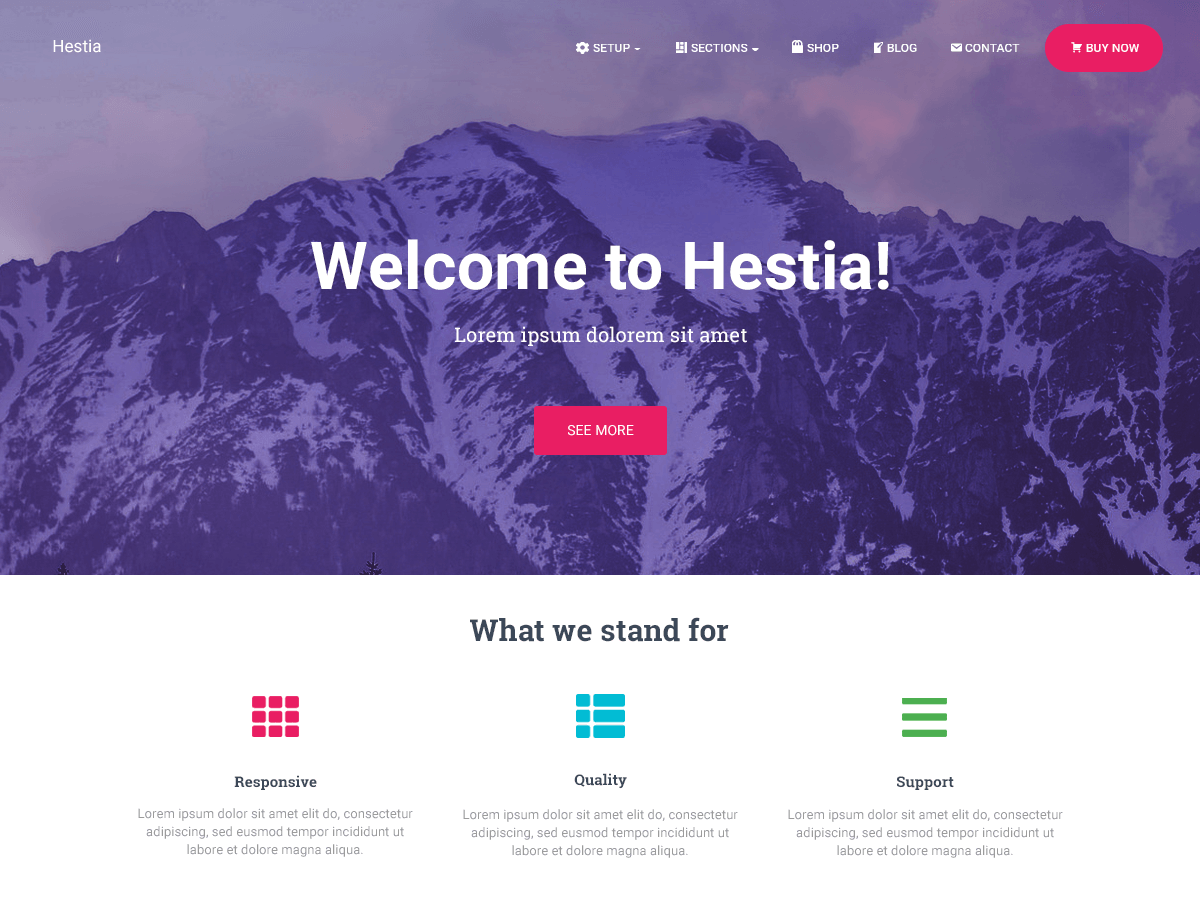
Hestia uses a Material Design layout that loads fast and looks polished without heavy customization work. WooCommerce pages style correctly on activation without extra configuration. The single product page, cart, and checkout all inherit the theme's clean spacing and typography automatically.
The free version limits layout options but delivers a professional look for fashion, beauty, and lifestyle stores. ThemeIsle, the developer behind Hestia, updates the theme consistently alongside WooCommerce major releases. Its update history on WordPress.org shows no gaps longer than two months in the past two years.
Best for: Small stores wanting a polished Material Design look with minimal post-install setup.
10. SB Mart — Feature-Ready Out of the Box

SB Mart from RadiusTheme ships a full WooCommerce feature set in its free version. Product comparison, product quick view, an AJAX cart, and category mega menus are all included at no cost. It targets multi-category stores that need department-style catalog navigation from day one.
SB Mart follows modern WooCommerce coding standards and receives regular updates. The theme works with Elementor for homepage customization and includes one-click demo import for fast store setup across multiple niche templates.
Best for: Multi-category stores needing built-in catalog navigation and comparison tools in the free version.
Free vs Premium WooCommerce Themes: When Does Upgrading Make Sense?
The free versions of every theme on this list work well for most new stores. You do not need to pay before you have confirmed that your products actually sell.
Three situations genuinely justify the cost of a premium upgrade.
The first is variation swatches on product pages. Most free themes display size and color options as plain text dropdowns. Premium versions add color swatch grids and image-based option selectors. This matters most for fashion, cosmetics, and home goods stores where visual selection drives purchase decisions.
The second is custom checkout page templates. The default WooCommerce checkout functions correctly but cannot be redesigned without code. Premium versions of Neve, Botiga, and Astra include drag-and-drop checkout builders. These let you create single-step or distraction-free checkout flows without a separate plugin purchase.
The third is direct developer support. Free theme support runs through WordPress.org community forums with unpredictable response times. Premium plans include ticketed support from the developer team with defined response windows.
You can also extend your theme's WooCommerce functionality without upgrading. Our guide on customizing WordPress plugins safely with hooks and filters covers how to modify WooCommerce behavior without touching core theme files.
Common WooCommerce Theme Problems and How to Fix Them
Have you ever switched to a new theme and found your cart page completely unstyled on the next page load? These are the three most common WooCommerce theme problems and the exact steps to resolve each one.
Problem: Cart page breaks or shows unstyled content after a theme switch
Cause: WooCommerce stores its cart, checkout, and My Account pages as shortcode-based WordPress pages. Some themes do not declare WooCommerce support in their functions.php file, so WooCommerce cannot attach its stylesheet to these pages correctly.
Fix:
- Go to WooCommerce > Status > Tools in your WordPress admin dashboard.
- Click Create Default WooCommerce Pages to regenerate all core WooCommerce shortcode pages.
- If the cart remains unstyled, open your theme's functions.php file and confirm it contains add_theme_support( 'woocommerce' ).
- Check the theme's WordPress.org support forum for any WooCommerce compatibility threads that match your issue.
Problem: Product images appear at the wrong size on the shop archive page
Cause: WooCommerce registers custom image sizes specific to each theme. After switching themes, the old cached image sizes remain in your database. WooCommerce attempts to display images using the new theme's registered dimensions but the source files were cropped to the previous theme's specifications.
Fix:
- Install the Regenerate Thumbnails plugin from WordPress.org.
- Go to Tools > Regenerate Thumbnails and click the button to start regeneration for all images.
- For stores with over 500 product images, run the WP-CLI command wp media regenerate --yes from your server terminal to avoid browser timeout issues.
- After regeneration, verify image dimensions under Appearance > Customize > WooCommerce > Product Images.
Problem: Checkout page displays generic WordPress styling instead of the active theme's design
Cause: The theme is missing WooCommerce-specific template files for the checkout page. This happens most often with lightweight or older themes that do not bundle WooCommerce template overrides in their file structure.
Fix:
- Go to WooCommerce > Status and review the Active Theme section in the system status report.
- If the report shows template overrides with a version mismatch, your theme's WooCommerce templates are behind the current WooCommerce version.
- Contact the theme developer and request updated WooCommerce template files for your WooCommerce version.
- As a temporary stopgap, install the Storefront Checkout plugin, which applies correct WooCommerce checkout styling across most themes.
WARNING: Never edit WooCommerce template files directly inside your active theme folder without creating a child theme first. Theme updates will overwrite any direct edits without warning.
Frequently Asked Questions About Free WooCommerce Themes for WordPress
Q: Can a free WooCommerce theme support a profitable online store?
A: Yes. Thousands of high-revenue WooCommerce stores run on free themes like Astra, OceanWP, and Storefront. A free theme on fast managed hosting outperforms a premium theme on slow shared hosting. Theme selection is one factor among many. Hosting speed, product photography, checkout flow, and page load time all have a greater direct impact on revenue than whether you paid for your theme.
Q: Which free WooCommerce theme is the fastest in 2026?
A: GeneratePress consistently scores 90 or higher on PageSpeed Insights mobile with page weight under 700 KB on a WooCommerce setup. Neve and Astra follow with 85/100 mobile scores. Neve holds the lightest page weight among the styled options at 678 KB. For raw speed with no design constraints, GeneratePress leads every benchmark test.
Q: Do free WooCommerce themes work with Elementor?
A: Most do. Astra, OceanWP, Neve, Blocksy, and Hestia all confirm Elementor compatibility in their official documentation. Kadence and Botiga are designed primarily for the block editor but remain compatible with Elementor. GeneratePress and Storefront work with Elementor but provide no bundled Elementor templates in the free version.
Q: How often should I update my WooCommerce theme?
A: Update within one week of each new version release. Theme updates regularly include compatibility patches for the latest WooCommerce version and WordPress core. Take a full site backup using a plugin like UpdraftPlus before any theme update. Major WooCommerce version releases require particular attention because they can change how theme template files render product and checkout pages.
Q: Will switching my WooCommerce theme delete my products or orders?
A: No. Products, orders, customer accounts, and all store data are stored in the WordPress database, completely separate from your active theme. After switching, you may need to reconfigure Customizer color and font settings, regenerate thumbnail image sizes, and rebuild any page builder-based layouts. Store data itself is never affected by a theme change.
Q: What is the difference between a WooCommerce theme and a regular WordPress theme?
A: Any WordPress theme can technically run alongside WooCommerce. A WooCommerce-specific theme includes dedicated template files for the shop archive, single product page, cart, checkout, and My Account pages. These templates give WooCommerce's core store pages correct layout and styling. A standard WordPress theme without WooCommerce templates often leaves these pages looking broken or completely unstyled for customers.
Your Next Step Before You Launch
Start with Astra or OceanWP if you want to go live quickly with a full WooCommerce store setup. Both themes include one-click demo imports, complete WooCommerce template coverage, and free versions that deliver real store functionality without an immediate paywall.
Before installing any theme, check the WooCommerce template compatibility details on its WordPress.org page. You should also browse the 10 best magazine WordPress themes if your store runs a content-heavy editorial section alongside its product catalog.
What has been the hardest part of choosing a WooCommerce theme for your store? Leave your question in the comments below.
Comments (0)